

Nearly half of the websites you visit are going to be WordPress – for many good reasons.
While much of WordPress’s offerings make it easy and convenient to run your website, you must do a few things consistently to ensure your site provides a reliable and enjoyable experience to its visitors and potential customers.
Before jumping into how to update your website, let’s first look at WordPress and how it measures up to other similar website platforms.
Table of Contents
- What is WordPress?
- WordPress vs Shopify vs Squarespace
- The Importance Of Updating Your Website
- Backing Up Your Site
- Updating Your Site
- Monitoring Security
- Conclusion
What is WordPress, anyways?
From it’s initiation, WordPress was mainly know only as a blogging platform. Today, WordPress is a web content management system offering countless options and plugins to build a fully customized website. WordPress is one of the best, if not, THE BEST, platform to built a website for the customization, and design opportunities that lets creators build a unique and useful website. We love using WordPress because the customization is endless. In addition, it’s an open-source, meaning anyone may use the platform, free of charge. You just need to learn how to use it! WordPress is a top choice for individuals and businesses hoping to make an impression online.

WordPress Vs. Shopify Vs. Squarespace – What’s the Difference?
As you’re probably aware, WordPress isn’t the only hosting platform out there. Businesses also use Shopify, Squarespace, among many others to sell products and build customer relationships.
What makes these platforms different? While it may seem like all web-hosting platforms are too similar to compare, but the truth is many aspects set each of these options apart.
So, what makes them different?
In simple terms, Shopify is purely focused on e-commerce and focuses on streamlining business functions by catering to those looking for a quick, one-size-fits-all setup. It’s good for structure but not for customization.
Squarespace focuses on selling while offering aesthetically pleasing templates.
WordPress provides unparalleled customization, allowing for flexibility, SEO optimization, and content-focused business models. Whatever you want to do on your website, WordPress has the capability to do it.
Why Is It Important To Update Your WordPress Website?
Your website is among the strongest and most impactful touch points between you and your customers. Visitors to your site expect a reliable, responsive, and safe place to explore your business and its offerings.
Maintaining your WordPress website is essential for ensuring the security, performance, compatibility, and overall health of your website.
Below are an non exhausted list of some issues we’ve seen due to people not updating their site:
- Hacking
- Formatting off
- Functionality no longer working
- Slow website
- Error messages, glitches and pages not loading
Please don’t let these issues happen to you! We have over ten years of experience working on WordPress, from small one-pagers to 30+ pages of complex websites. If you prefer to learn how to maintain a WordPress website, you can do so by taking online courses, YouTube or college. With that being said, read on for the beginner’s manual on updating your website on your own.
1. Backing Up Your Site
First and foremost, backing up your site ensures you don’t lose any information or content that keeps your site running effectively. Think of backing up similar as saving an important file on your computer – should anything happen, you know your file is safe because you made a copy.
Why Do You Need To Back Up Your Site?
Backing up your site ensures you can restore its contents in the event of an outage, fixing current errors, a virus, or any other issues that put your website at risk. While your host maintains backups of your site, they may not do it often enough or charge high fees to restore it.
How Often Should You Backup?
Ideally, you should backup your website up to three times each month. This frequency ensures you have a fully updated backup and can restore the latest edition of your site.
It’s also essential to backup your site before any updates and after you make significant changes. Personally, we use UpDraftPlus for it’s ease of use, ensuring all backups and restores occur seamlessly.
Another great plugin is All-In-One WP Migration which allows you to download a copy of the site to your computer. Both plugins allow you backup on an manual or automatic basis and store either on your cloud, on your website’s server or an external file on your computer.
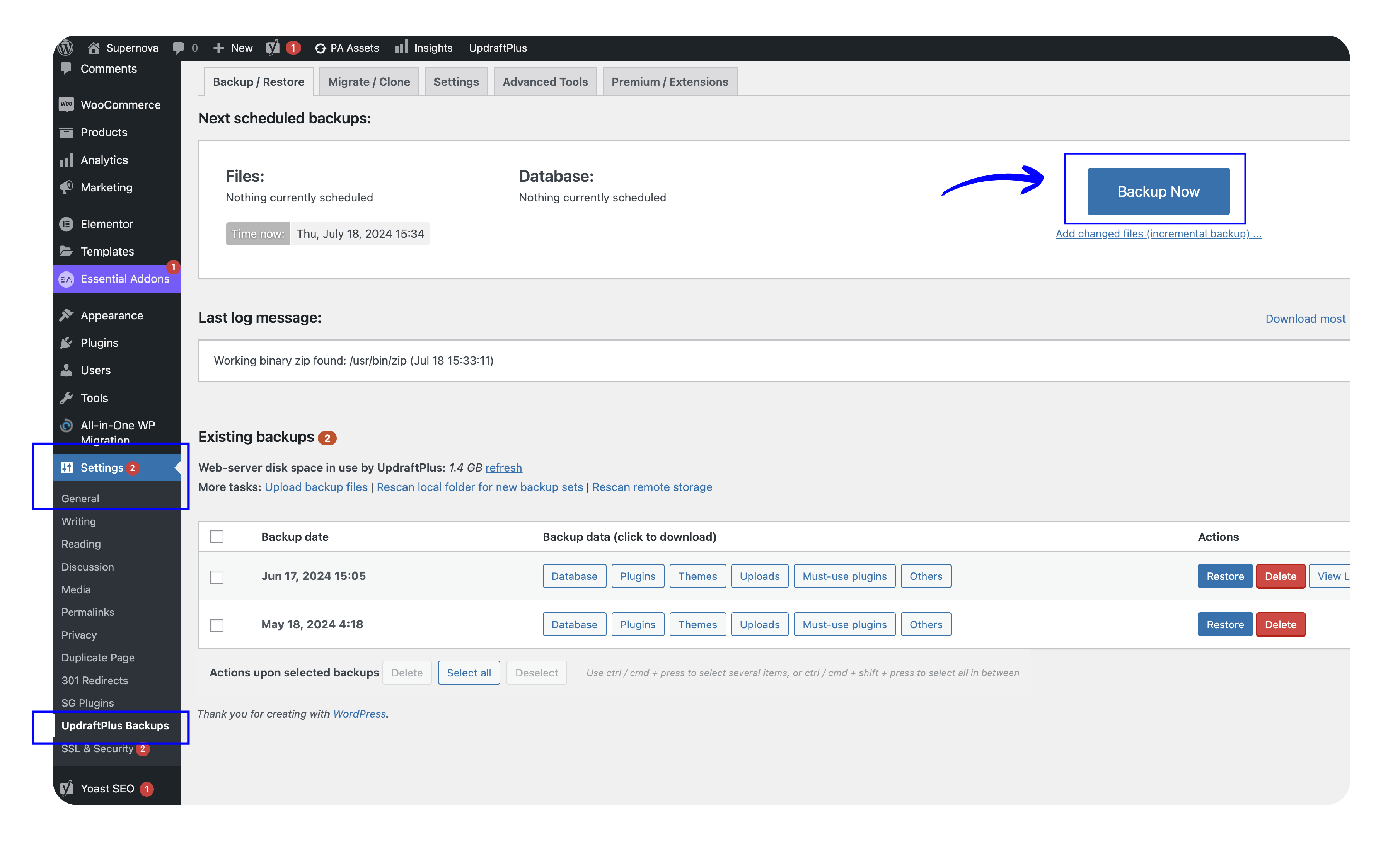
How to Backup Your WordPress Website
- Go to Settings, then click UpDraftPlus Backups
- Select Backup Now. Check all the following options and stay on the page until the process is complete – this can take a few minutes. Your backup will now be available saved.
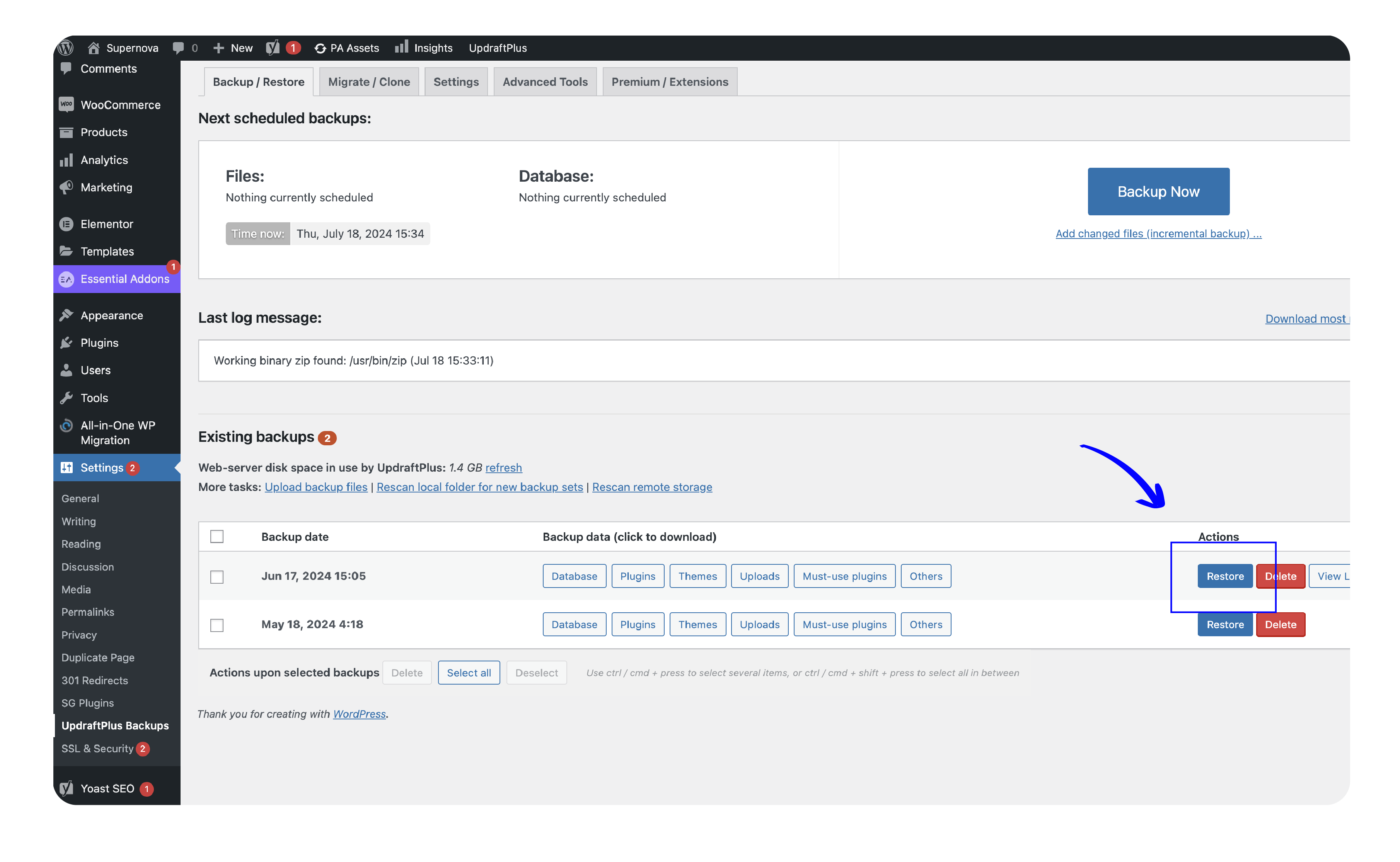
How to Restore Your WordPress Website
- Go to Settings, then click UpDraftPlus Backups
- Click Restore next to the version of your site you want to restore. Select all options and wait a few minutes for the restore to complete.
- Your website will now revert to the previous date of your saved website.
.
2. Updating Your Site
Updating your website is the surest way to keep all site components running seamlessly and effectively. There are 3 main parts of your site you need to update regularly inc: WordPress, Plugins and your Theme.
1. WordPress
WordPress is the platform and backend interface you use to manage your website. It is crucial to consistently run updates for the most current version of the site. These updates ensure the “backbone” of your site works properly.
2. Plugins
Your plugins are the additional components of your site that offer customization and enhancement. Most websites utilize numerous plugins that affect security, sales, analytics, and many other aspects. Regular updates fix problems, improve functionality, and ensure the code is current.
3. Theme
The website’s theme establishes structure and customizes styling, including checkout and cart pages. Developers regularly update the theme to add features, resolve bugs, and improve performance. Updating the theme is crucial to benefit from these enhancements.
How to Update
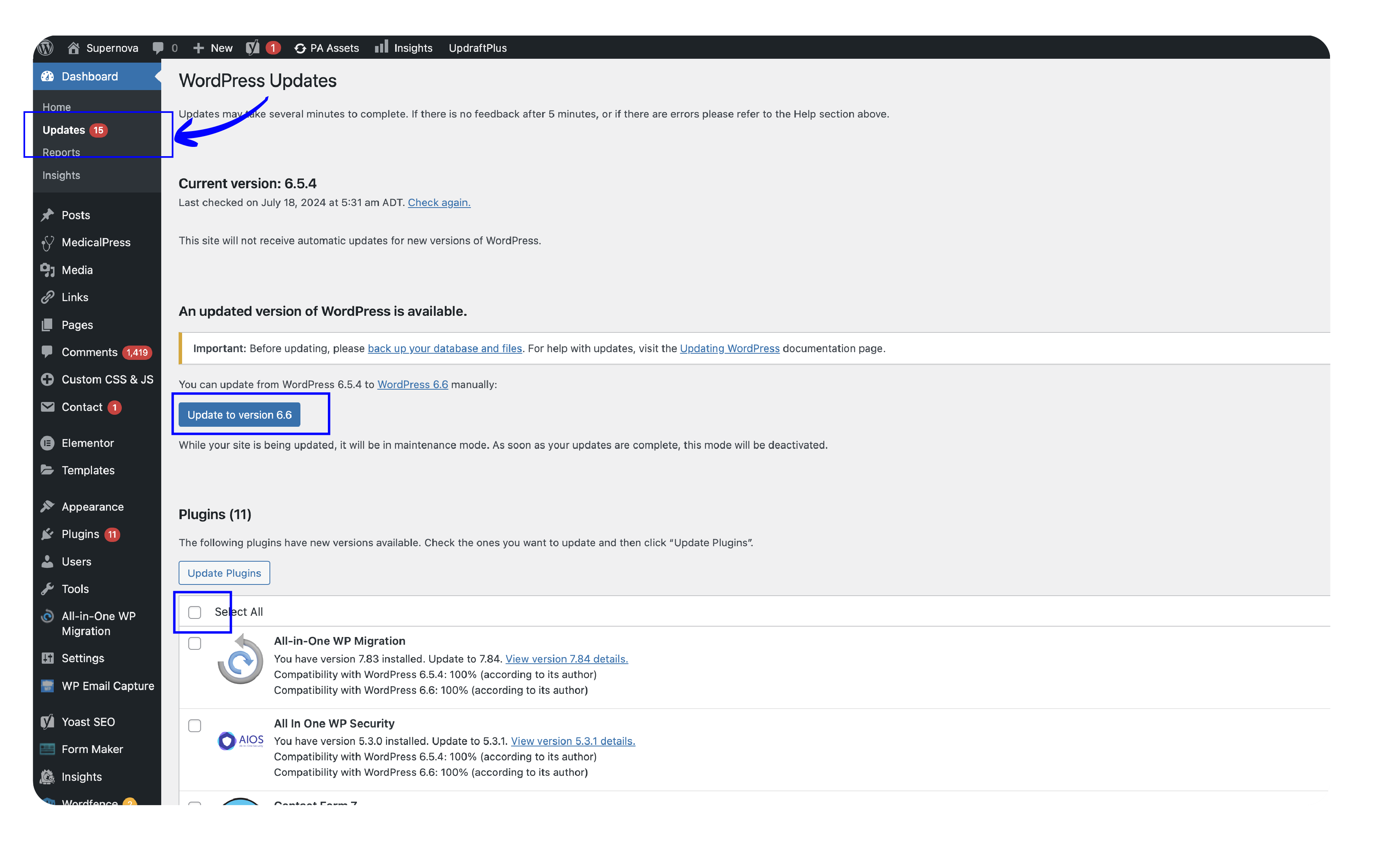
- Before performing any updates, backup your website.
- Go to your dashboard and select Updates.
- Check the boxes or select all plugins, themes, and WordPress versions you want updated.
- Make sure to wait until the update processes before closing the page.
3. Monitoring Security
Wordfence is a plugin that acts as your site’s firewall and security scanner. It protects your site against suspicious activity, vulnerabilities, and hackers. Should any of these events occur, Wordfence will alert you via email of any issues. We like using Wordfence because it’s a reliable security tool including a firewall, malware scanner, good email communications and ability to detect potential threats on your website. PLUS, it’s free!
Luckily, the Wordfence plugin does a superb job of keeping your site safe without too much effort. However, you must ensure you monitor its results to protect your site.
Canadian Taxes for WordPress Website
Download this free excel spreadsheet that includes the tax rates (HST, GST, PST, etc) for all of Canada’s provinces and territories. Download here.
How to Adjust Email Settings:
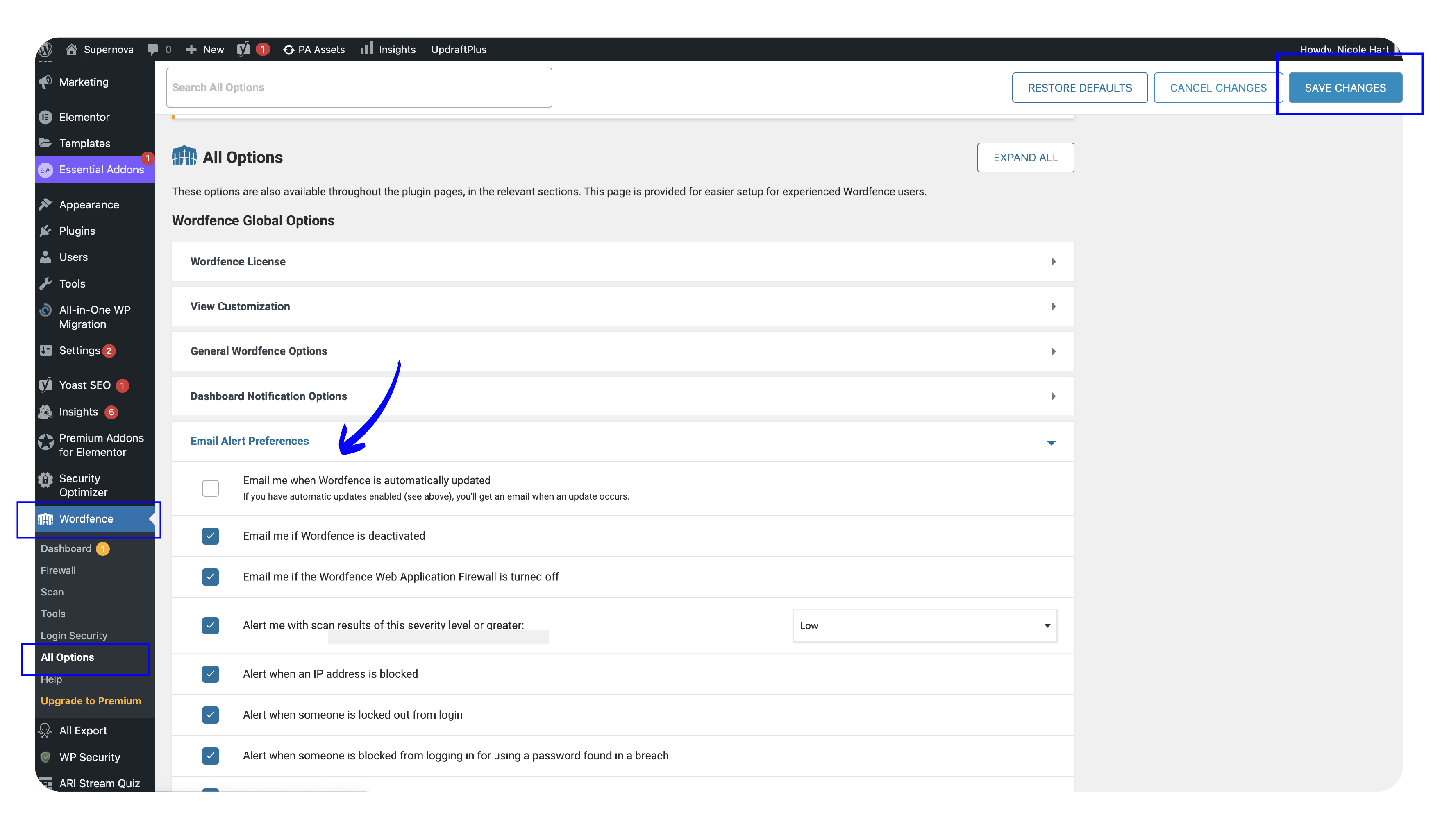
- Click Wordfence on your dashboard and select All Options.
- Find Email Alert Preference. Select the types of alerts you prefer and how often you want to receive the Activity Report.
- Click Save Changes after choosing your preference.
How to Scan
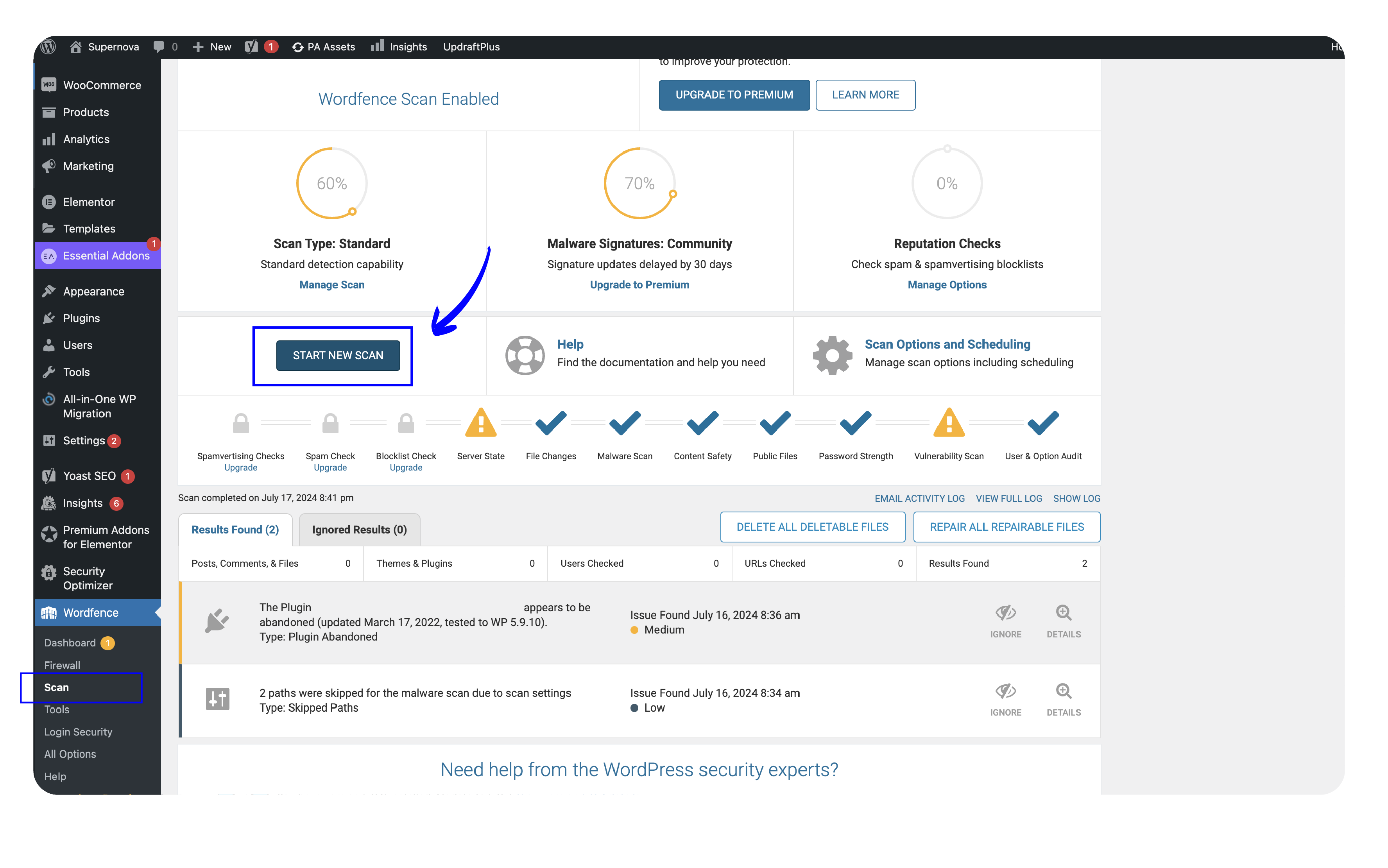
You can initiate a security scan of your site whenever you feel it’s necessary. From your dashboard:
- Select Wordfence, then Scan.
- Click Start New Scan.
Like our content?
Wait are you waiting for? Subscribe for more tips and resources.
Conclusion
Ultimately, ensuring your site offers visitors a memorable and safe experience is the top priority. The easiest and most effective way to provide a reliable site is through regular updates, backups, and a regular commitment to monitoring your website’s security.
We’re here to help you maintain your current or new website. Want a professional to handle things and make sure everything is running smoothly? Check out our Website Maintenance Packages here.


