Table of Contents
- Introduction
- Why Should You Care About Adding Taxes to Your Website?
- Understanding Canadian Taxes: The Basics
- Tax Rates by Province
- Cross-Border Sales and International Customers
- Setting Up Taxes on Your WordPress Website: A Step-by-Step Guide
- Advanced WooCommerce Tax Features
- Common Questions About Canadian Website Taxes
- Tips for Managing Taxes on Your Website
- Helpful Resources
Introduction
Disclaimer: This article is for informational purposes only and does not constitute legal or accounting advice. For specific guidance on your individual circumstances, please contact the Canada Revenue Agency (CRA) or consult with a qualified professional.
Are you selling products or services online in Canada? Or maybe you’re a web designer helping Canadian businesses set up their online stores? Either way, understanding how to add taxes to a website is crucial for compliance and smooth operations. Don’t worry if it seems confusing at first – we’re here to help! This comprehensive guide will walk you through everything you need to know about setting up Canadian taxes on your WordPress website, especially if you’re using WooCommerce.
Why Should You Care About Adding Taxes to Your Website?
Before we dive into the how-to part, let’s discuss why this matters so much:
- Legal Compliance: In Canada, you’re required to charge taxes on most things you sell online. The Canada Revenue Agency (CRA) is here to help ensure businesses operate within the law and contribute to our country’s financial well-being.
- Financial Clarity: Proper tax collection helps you maintain accurate financial records, making it easier to understand your business’s financial health and prepare for tax season.
- Customer Trust: When customers see clear pricing, including taxes, they’re more likely to trust your business and complete their purchases.
- Simplified Operations: Setting up taxes correctly from the start will save you time and reduce stress later on. Imagine trying to calculate all the taxes manually at the end of the year – that’s a headache no one wants!
- Accurate Accounting: When your website handles taxes automatically, it’s much easier to keep track of your sales and what you owe the government, ensuring you’re always prepared for tax time.
- Scalability: As your business grows and you start selling to more provinces or even internationally, having a robust tax system in place will make expansion much smoother.
Understanding Canadian Taxes: The Basics
Let’s break down the Canadian tax system step by step:
GST (Goods and Services Tax)
- A federal tax that applies to the whole country
- The current GST rate is 5%
- Almost everything sold in Canada is subject to GST
HST (Harmonized Sales Tax)
- Some provinces combine their provincial tax with the GST to create HST
- The HST rate varies depending on the province
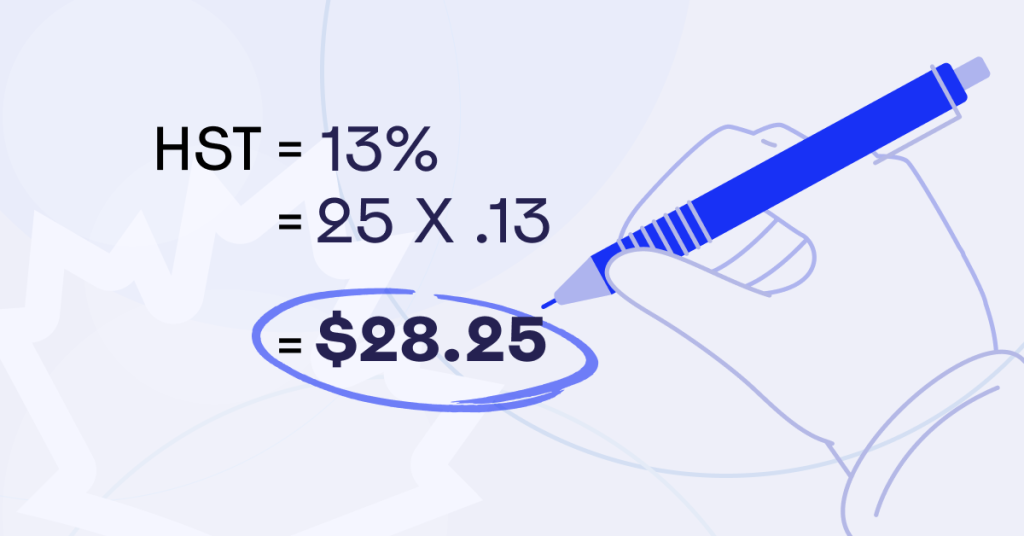
- For example, in Ontario, the HST is 13% (5% GST + 8% provincial portion)
PST (Provincial Sales Tax)
- Some provinces have their own tax on top of the GST
- The PST rate varies by province
- For instance, British Columbia has a 7% PST in addition to the 5% GST
QST (Quebec Sales Tax)
- Quebec has its own special system
- They charge 9.975% QST on top of the 5% GST
Tax Rates by Province

YOUTUBE
How to Add Tax To Your Website - Canadian Edition
This video explains the basics of tax and how to charge your customers the correct tax % by province on WordPress.
Here’s a quick look at the tax rates for each province and territory:
- Alberta: 5% (GST only)
- British Columbia: 5% GST + 7% PST
- Manitoba: 5% GST + 7% PST
- New Brunswick: 15% HST
- Newfoundland and Labrador: 15% HST
- Northwest Territories: 5% GST
- Nova Scotia: 15% HST
- Nunavut: 5% GST
- Ontario: 13% HST
- Prince Edward Island: 15% HST
- Quebec: 5% GST + 9.975% QST
- Saskatchewan: 5% GST + 6% PST
- Yukon: 5% GST
For example, if your business is in Ontario:
- For customers in Ontario, you’d charge 13% HST
- For customers in Alberta, you’d charge 5% GST
- For customers in British Columbia, you’d charge 5% GST and 7% PST
It’s important to get this right for each customer to stay compliant with tax laws and ensure a smooth experience for your customers.
Cross-Border Sales and International Customers
For sales to customers outside of Canada, including the United States and Mexico, you generally don’t charge Canadian taxes. However, this doesn’t mean you can always apply a 0% tax rate automatically. Here’s what you need to know:
- Sales to the United States: You typically don’t charge Canadian taxes on sales to U.S. customers. However, you may need to collect and remit sales tax for certain states if you meet their economic nexus thresholds. These thresholds vary by state and can be based on revenue, number of transactions, or both.
- Sales to Mexico: Similar to the U.S., you don’t charge Canadian taxes on sales to Mexican customers. Mexico has its own VAT (Value Added Tax) system, but foreign sellers generally don’t need to collect this unless they have a physical presence in Mexico.
- Sales to other countries: The tax obligations for sales to other countries can vary widely. Some countries may require you to register for and collect VAT if you exceed certain sales thresholds, even if you don’t have a physical presence there.
Examples of countries that may require tax collection:
- European Union (EU) countries: The EU has specific rules for distance selling, and you may need to register for VAT if you exceed certain thresholds.
- Australia: If you sell more than AUD 75,000 of goods or services to Australian consumers in a 12-month period, you may need to register for and collect GST.
- New Zealand: Similar to Australia, there’s a threshold (currently NZD 60,000) above which you may need to register for and collect GST.
It’s crucial to research the specific requirements for any country you’re selling to regularly. While you may not need to collect taxes for many international sales, you should always be aware of potential obligations, especially as your business grows.
is right for each customer to stay compliant with tax laws and ensure a smooth experience for your customers.
Setting Up Taxes on Your WordPress Website: A Step-by-Step Guide
Now that we understand the basics of Canadian taxes and cross-border considerations, let’s walk through how to set them up on your WordPress website using WooCommerce. We’ll go through this step-by-step, so even if you’re not super tech-savvy, you’ll be able to follow along.
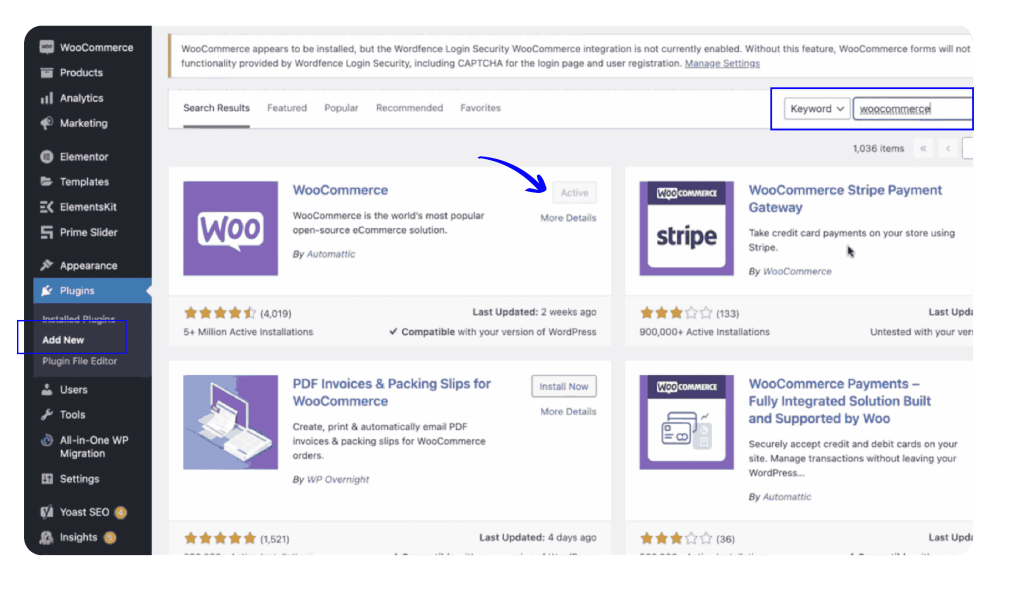
Step 1: Install WooCommerce
First, you need to install WooCommerce, a popular plugin that turns your WordPress site into an online store:
- Log in to your WordPress dashboard
- In the left menu, click on “Plugins,” then “Add New”
- In the search bar at the top right, type “WooCommerce”
- Look for WooCommerce in the list and click “Install Now”
- Once installed, click the “Activate” button
- Follow the setup wizard to enter basic info about your store
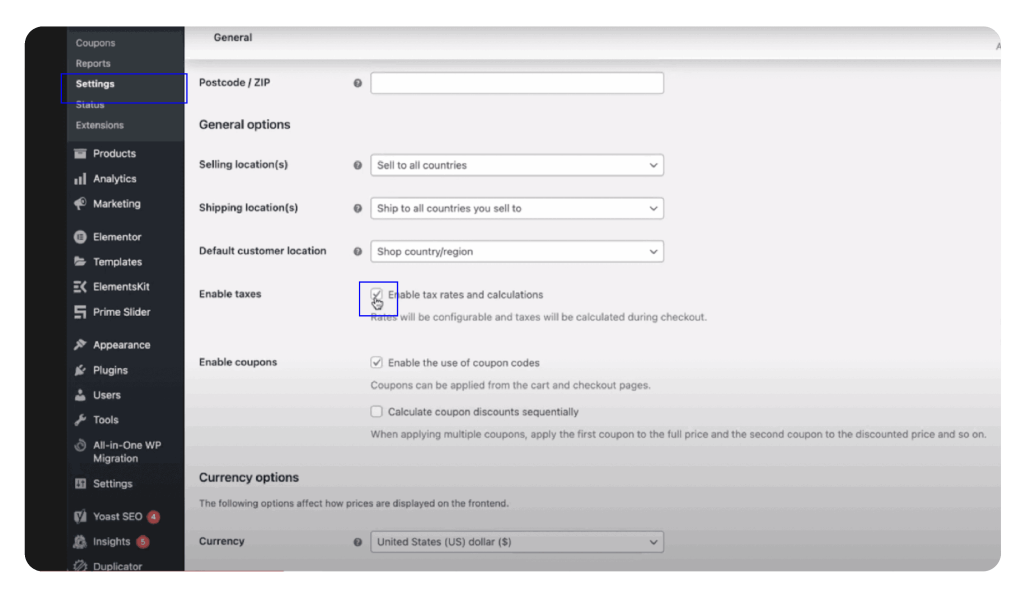
Step 2: Enable Taxes in WooCommerce
Now that WooCommerce is installed, let’s turn on the tax features:
- In your WordPress dashboard, go to “WooCommerce” & “Settings”
- Click on the “General” tab
- Scroll down to find “Enable taxes” and check the box next to it
- Click “Save changes” at the bottom of the page
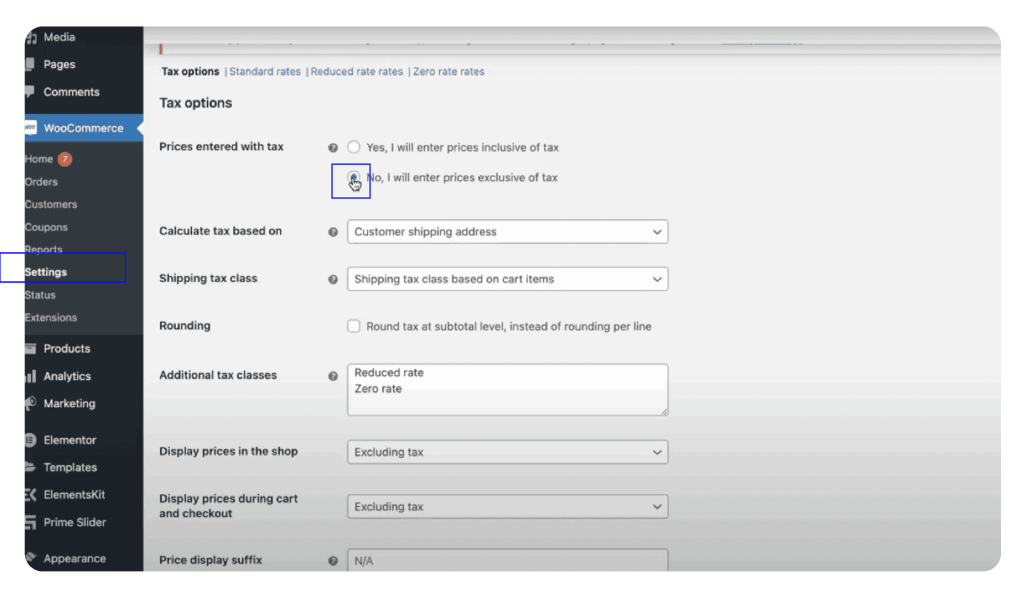
Step 3: Configure Tax Settings
Next, we need to tell WooCommerce how to handle Canadian taxes:
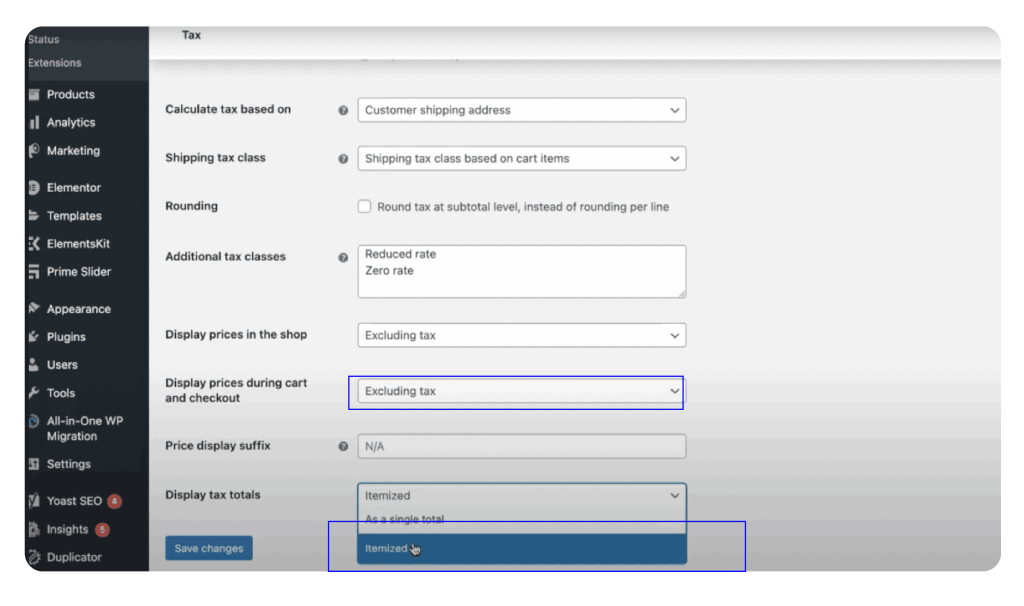
- Still in WooCommerce settings, click on the “Tax” tab
- Under “Tax options,” configure the following:
- “Prices entered with tax”: Choose whether your product prices include tax or not
- “Calculate tax based on”: Select “Customer shipping address”
- “Shipping tax class”: Usually, leave this as “Shipping tax class based on cart items”
Don’t forget to click “Save changes”
Step 4: Add Tax Rates
This is where we tell WooCommerce what tax rates to charge for different provinces:
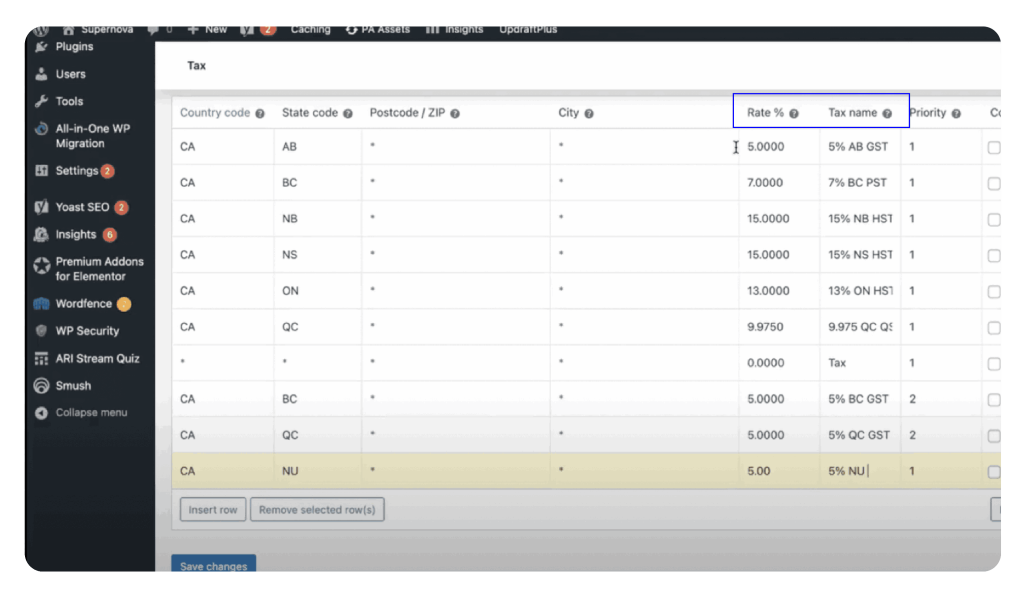
- In the Tax settings, click on “Standard rates”
- Click “Add rate” at the bottom to create a new tax rate
- Fill in the details for each province:
- Country code: “CA” for Canada
- State code: Use the two-letter code for the province (e.g., “ON” for Ontario)
- Rate %: Enter the tax rate (e.g., “13” for Ontario’s 13% HST)
- Tax name: Give it a descriptive name (e.g., “Ontario HST”)
4. Click “Add rate” to save each tax rate
5. Repeat this process for each province and territory
Step 5: Set Up International Tax Rules
To handle international sales correctly:
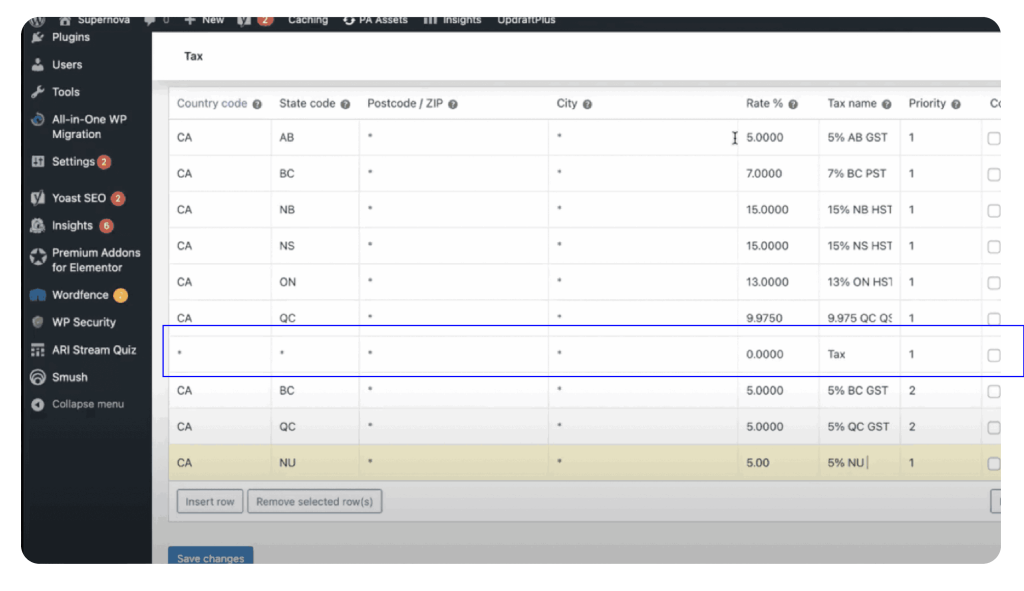
- Create a new tax rate for international sales
- Set the Country code to “*” (asterisk) to match all countries
- Set the Rate % to 0
- Name it something like “International Sales – No Tax”
- This will ensure that customers outside Canada aren’t charged Canadian taxes
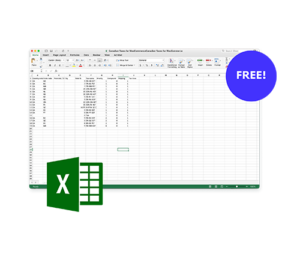
Canadian Taxes for WordPress Website
Download this free excel spreadsheet that includes the tax rates (HST, GST, PST, etc) for all of Canada’s provinces and territories. Download here.
Step 6: Test Your Setup
After setting everything up, it’s crucial to make sure it’s working correctly:
- Go to your online store and add a product to your cart
- Proceed to the checkout page
- Try entering shipping addresses from different provinces and countries
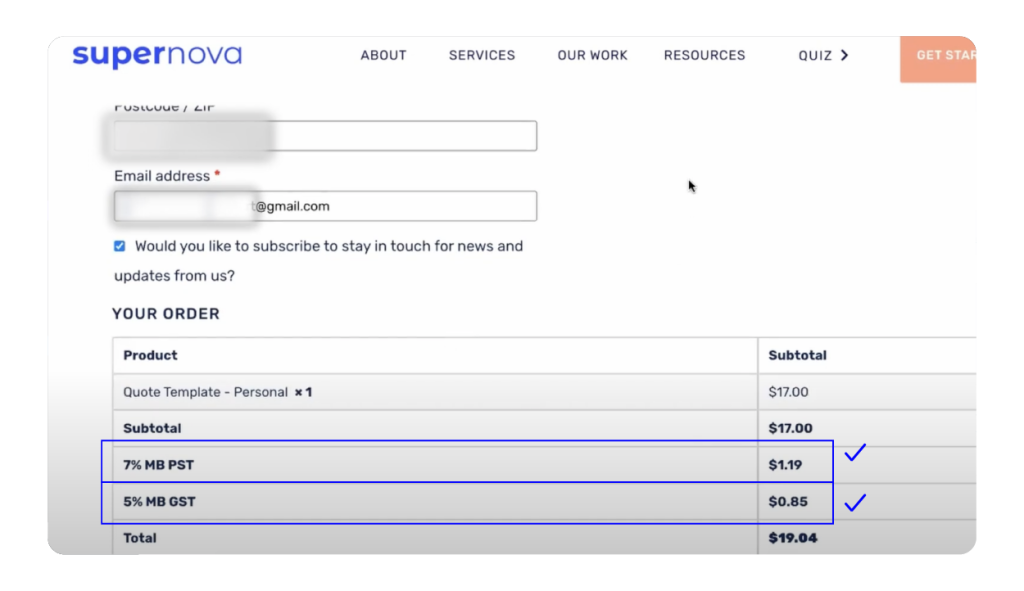
- Verify that the correct amount of tax is being added each time (including 0% for international addresses)
Step 7: Set Up Tax Reporting
WooCommerce can help you keep track of the taxes you collect:
- In your WordPress dashboard, go to “WooCommerce” & “Reports”
- Click on the “Taxes” tab
- Here you can see how much tax you’ve collected over time
- Regularly check these reports to ensure everything looks correct
Advanced WooCommerce Tax Features
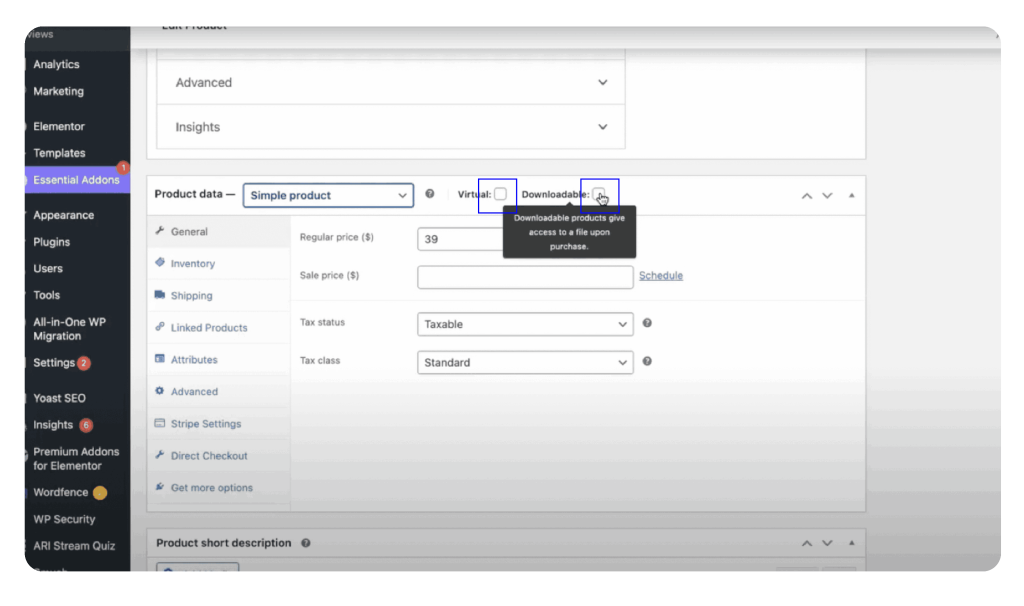
WooCommerce offers some advanced features to help with tax management:
Virtual vs. Downloadable Products:
- In WooCommerce, you can designate products as virtual (no shipping required) or downloadable
- This can affect how taxes are calculated, especially for digital goods
Zero-rated Products:
- For products that are tax-exempt, you can set up a “Zero Rate” tax class in WooCommerce
- Assign tax-exempt products to this class to ensure no tax is charged
Stripe and PayPal Integration:
- Both Stripe and PayPal can be integrated with WooCommerce for payment processing
- These integrations can help ensure that taxes are correctly calculated and collected during checkout
Tax Classes:
- You can set up different tax classes for products that are taxed differently
- This is useful for items like books, which may have different tax rates in some provinces
Cross-border Sales:
- For sales to other countries, you can set up rules to apply 0% tax
- This is important for Canadian businesses selling internationally
Remember to configure these settings carefully based on your specific business needs and the types of products you’re selling.
Like our content?
Wait are you waiting for? Subscribe for more tips and resources.
Common Questions About Canadian Website Taxes
Let’s address some common questions about Canadian website taxes:
Q: Do I need to charge tax on everything I sell?
A: Not always. Some items, like basic groceries or certain medical supplies, are usually tax-free. Most goods and services are taxable. If you’re unsure about a specific product, check with the CRA or a qualified accountant.
Q: What if I sell to customers outside of Canada?
A: For customers outside Canada, you generally don’t charge Canadian taxes. However, you might need to look into tax rules for the countries you’re selling to. Some countries, particularly in the European Union, require you to collect taxes on sales to their residents if you exceed certain thresholds, even if your business isn’t located there. For sales to the United States or Mexico, you typically don’t need to collect Canadian taxes, but you should be aware of potential state sales tax obligations in the U.S. if you have significant sales to a particular state.
Q: How often do I need to remit the collected taxes to the government?
A: It depends on your sales volume. Small businesses might only need to remit annually, while larger ones might do it monthly or quarterly. When you register for a GST/HST account, the CRA will inform you of your filing frequency.
Q: What if I make a mistake with taxes?
A: Don’t panic! If you notice a mistake, you can usually correct it. Keep good records of your sales and taxes collected. If you’re unsure what to do, contact the CRA or consult with an accountant. They can guide you on how to rectify errors.
Q: Do I need to show taxes separately on my website?
A: It’s a good practice to show taxes separately at checkout. This helps customers understand what they’re paying for and builds trust. In your WooCommerce settings, you can choose to display prices with or without tax included.
Q: What about selling digital products?
A: Digital products (like e-books, software, or online courses) are generally taxable in Canada. The same rules apply as for physical products – you charge tax based on where the customer is located. However, for international sales of digital products, the rules can be more complex and may depend on the specific countries involved.
Q: Do I need to register for a GST/HST number?
A: If your business makes more than $30,000 in worldwide revenue over 12 months, you must register for a GST/HST number. Even if you’re below this threshold, you can choose to register voluntarily. There can be benefits to registering, like being able to claim input tax credits.
YOUTUBE
How to Add Tax To Your Website - Canadian Edition
This video explains the basics of tax and how to charge your customers the correct tax % by province on WordPress.
Tips for Managing Taxes on Your Website
- Keep tax rates up to date: Check for updates at least once a year, usually around the start of the new year.
- Use clear labels: When showing taxes, use clear names like “GST,” “HST,” or “PST” so customers know what they’re paying.
- Keep good records: Regularly download and save your WooCommerce tax reports.
- Consider professional help: If taxes seem confusing, don’t hesitate to consult with an accountant, especially for international sales.
- Use tax codes for products: Assign appropriate tax codes to products in WooCommerce, especially for non-taxable items.
- Set up tax classes: Use different tax classes for products that are taxed differently.
- Be clear about your policies: Explain your tax and refund policies clearly on your website.
- Stay informed: Follow reliable sources like the CRA website to stay up-to-date on tax law changes.
- Use WooCommerce’s built-in features: Make the most of automated tax calculations and reports.
- Consider tax-inclusive pricing: If you want simpler pricing for customers, you can set your prices to include tax.
- Monitor international sales: Keep track of your sales to different countries and research their tax requirements if you start selling significant volumes to a particular region.
Troubleshooting Common Issues
Even with careful setup, you might encounter some issues. Here are some common problems and how to fix them:
Taxes not showing up at checkout:
- Double-check that you’ve enabled taxes in WooCommerce settings
- Verify that you’ve entered tax rates for all provinces
- Ensure your products are set to a taxable tax class
Wrong tax rates being applied:
- Verify that you’ve entered the correct rates for each province
- Check that the customer’s address is being correctly detected
- Look for any conflicting rules in your tax settings
Taxes being applied to exempt products:
- Set up a “Zero Rate” tax class and assign exempt products to this class
- Make sure you haven’t accidentally set shipping to be taxable for these products
Customers complaining about high taxes:
- Ensure you’re not accidentally applying multiple tax rates to the same product
- Check that you’re not charging tax on tax (compounding)
- Verify that your tax rates are up-to-date and correct
Tax reports not matching actual collections:
- Make sure all orders are being properly recorded in WooCommerce
- Check for any manual adjustments or refunds that might affect tax totals
- Verify that your tax settings haven’t changed during the reporting period
International customers being charged Canadian taxes:
- Check that you’ve set up the correct 0% tax rate for international sales
- Verify that the customer’s country is being correctly detected at checkout
Helpful Resources
To help you navigate Canadian taxes for your online business, here are some valuable resources:
- Register for a GST/HST account: https://www.canada.ca/en/revenue-agency/services/tax/businesses/topics/gst-hst-businesses/account-register.html
- Sales Tax Rates By Province: https://www.retailcouncil.org/resources/quick-facts/sales-tax-rates-by-province/
- Province & Territory Codes: https://www.canada.ca/en/revenue-agency/services/tax/businesses/topics/completing-slips-summaries/financial-slips-summaries/return-investment-income-t5/provincial-territorial-codes.html
- Canadian Taxes for WooCommerce Plugin: https://supernovasites.com/product/canadian-taxes-for-woocommerce/
- Canada Revenue Agency:
- Website: https://www.canada.ca/en/revenue-agency.